Our advice: arrange it before 1 December. 14 days left. Get started for 2026
Signing up as an individual, in six steps
You finish your sign-up in six steps. Here you read what to fill in on each screen, and what to do if you get stuck. Keep the items below at hand and you can do it in one go.
Contents
Before you start
A recent energy bill
A PDF (max. 10 MB) from your current energy supplier, no older than 12 months. The bill shows your name, your address and your EAN code.
Your meter code
You only need the last 6 digits. It is on your electricity meter in the meter cupboard, and often on your energy bill too.
Your passport, ID card or driving licence
And your phone to take the photos.
The login details for your charger
For the app or platform of your charger. You need them to connect your charging sessions.
Your bank account number (IBAN)
We pay your earnings into this account.
Rather watch?
Is your charger on E-Flux by Road? Then you sign up slightly differently. See signing up with E-Flux
Step 1
Tell us more about you
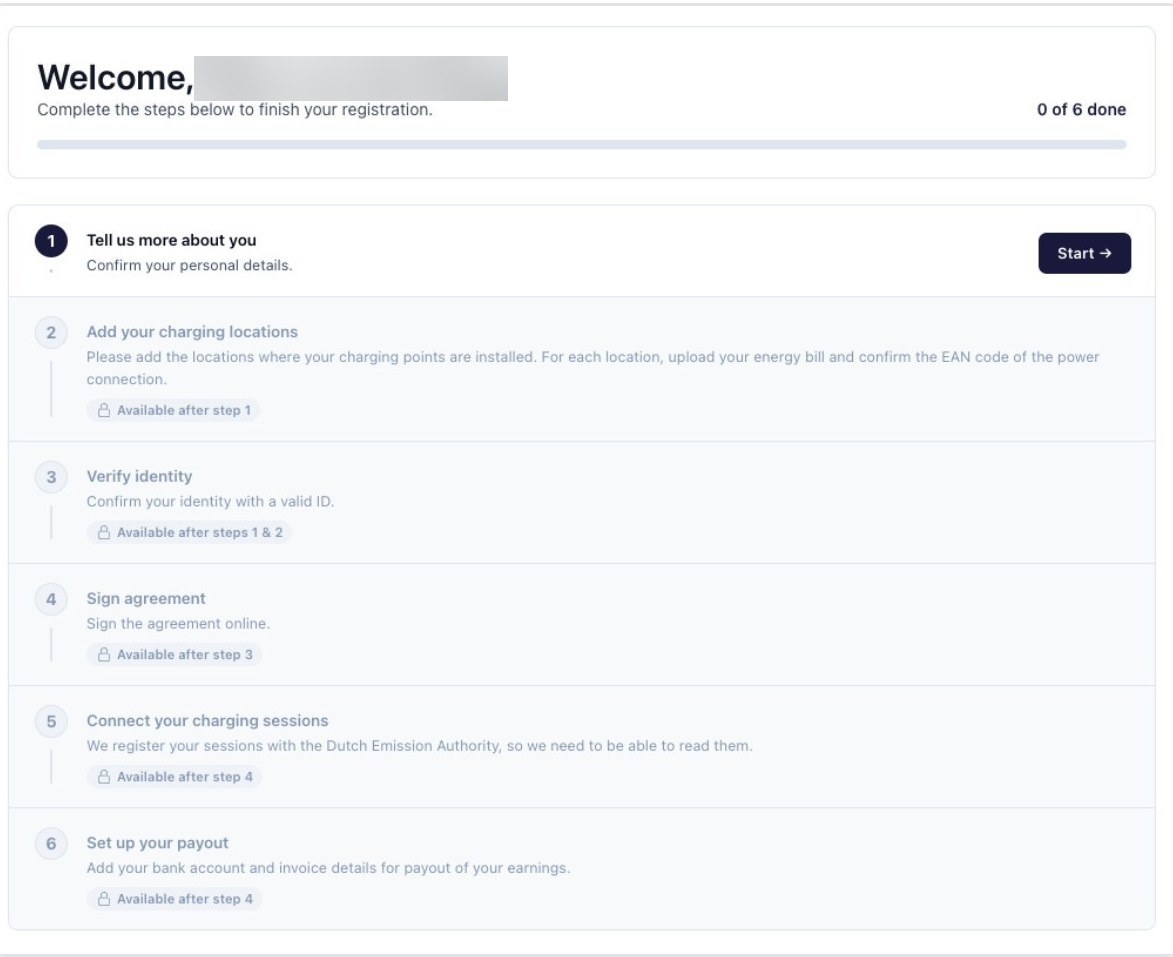
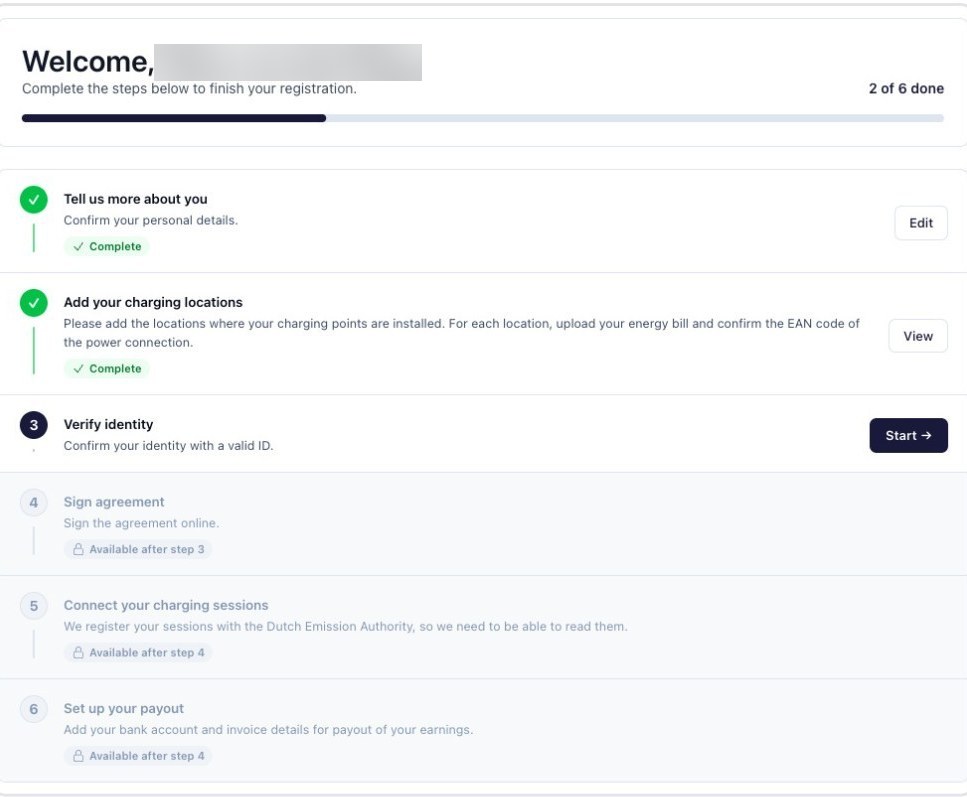
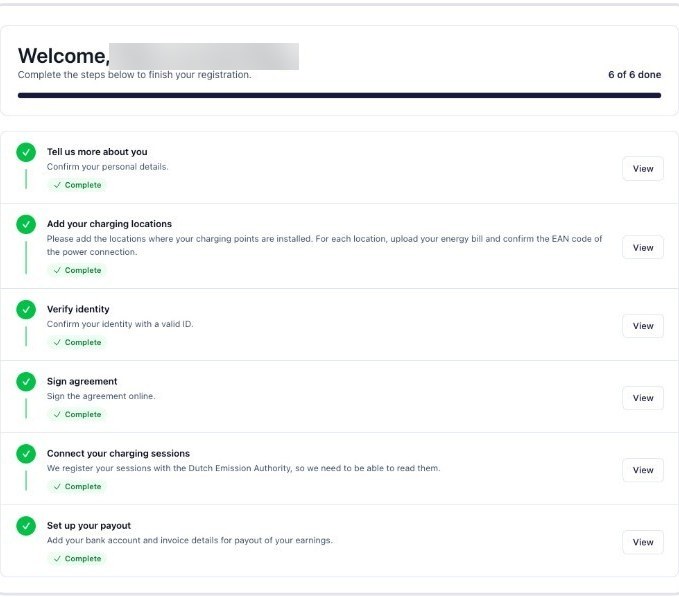
You start in your onboarding overview. It shows the six steps, and after each step you come back here. The steps open in order; a padlock means the step opens once the steps before it are done. We use the details in this step to prepare your agreement (step 4). Action needed: yes, fill in your details.
- Check that your name at the top of the overview is spelled correctly.
- Click Start next to Tell us more about you.
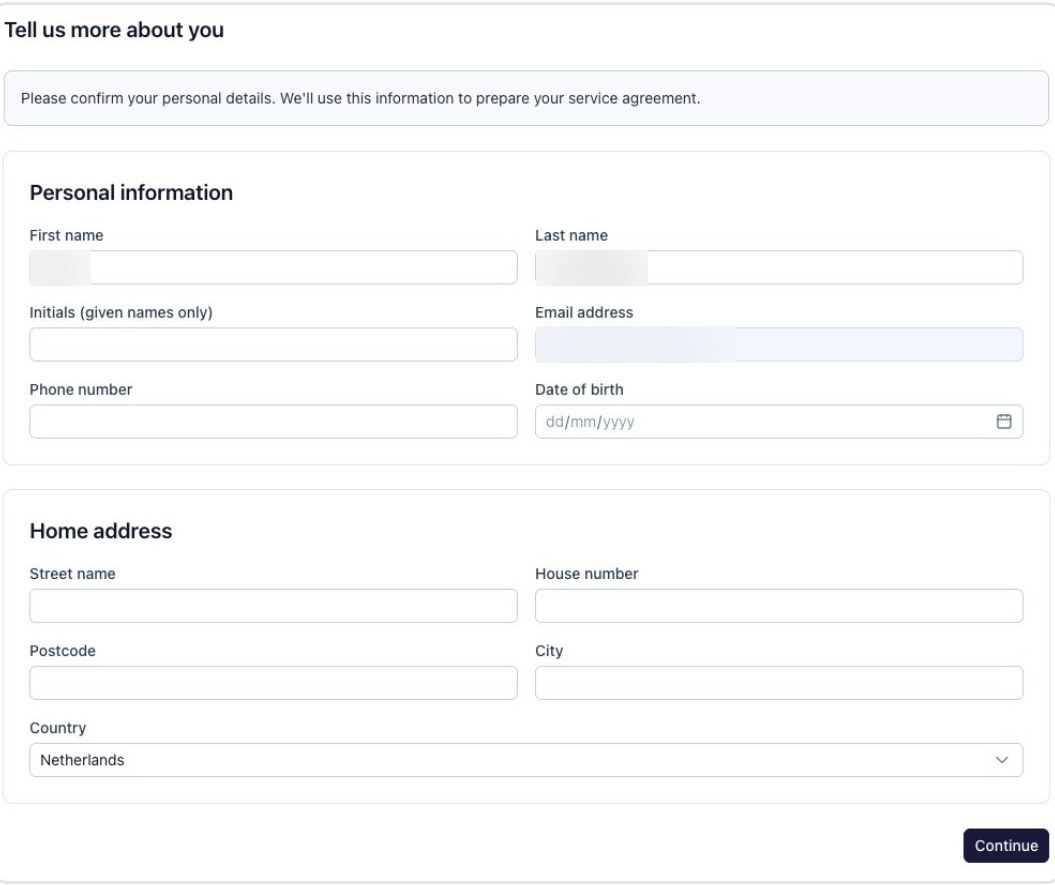
- Fill in your first name, last name and initials, exactly as they appear on your ID. Initials of your given names only, for example M.J.
- Fill in your phone number with country code, for example +31612345678.
- Choose your date of birth.
- Fill in your home address: street, house number, postcode and city, and check the country.
- Click Continue.
Use your official name. In step 3 we compare this name with your ID. If your passport says Petrus but everyone calls you Peter, fill in Petrus.
I lease my car. Can I still take part?
Can I change my email address here?
Step 2
Add your charging locations
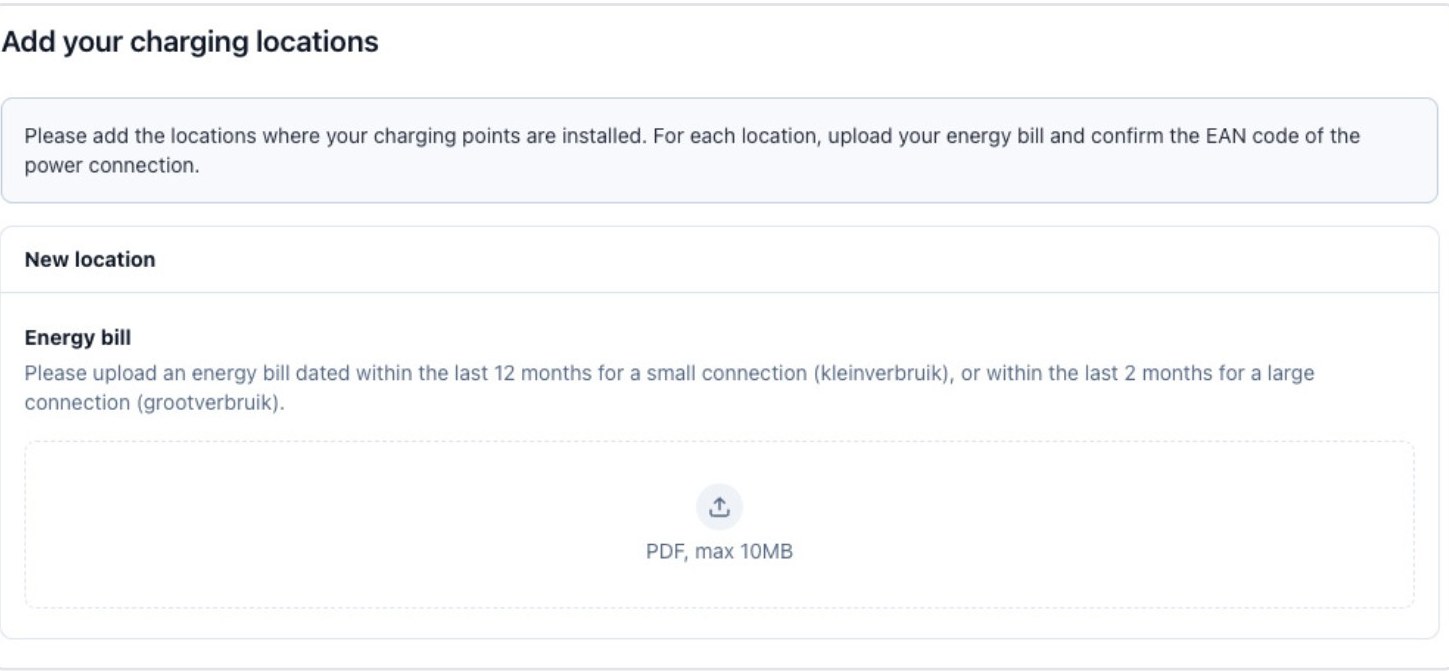
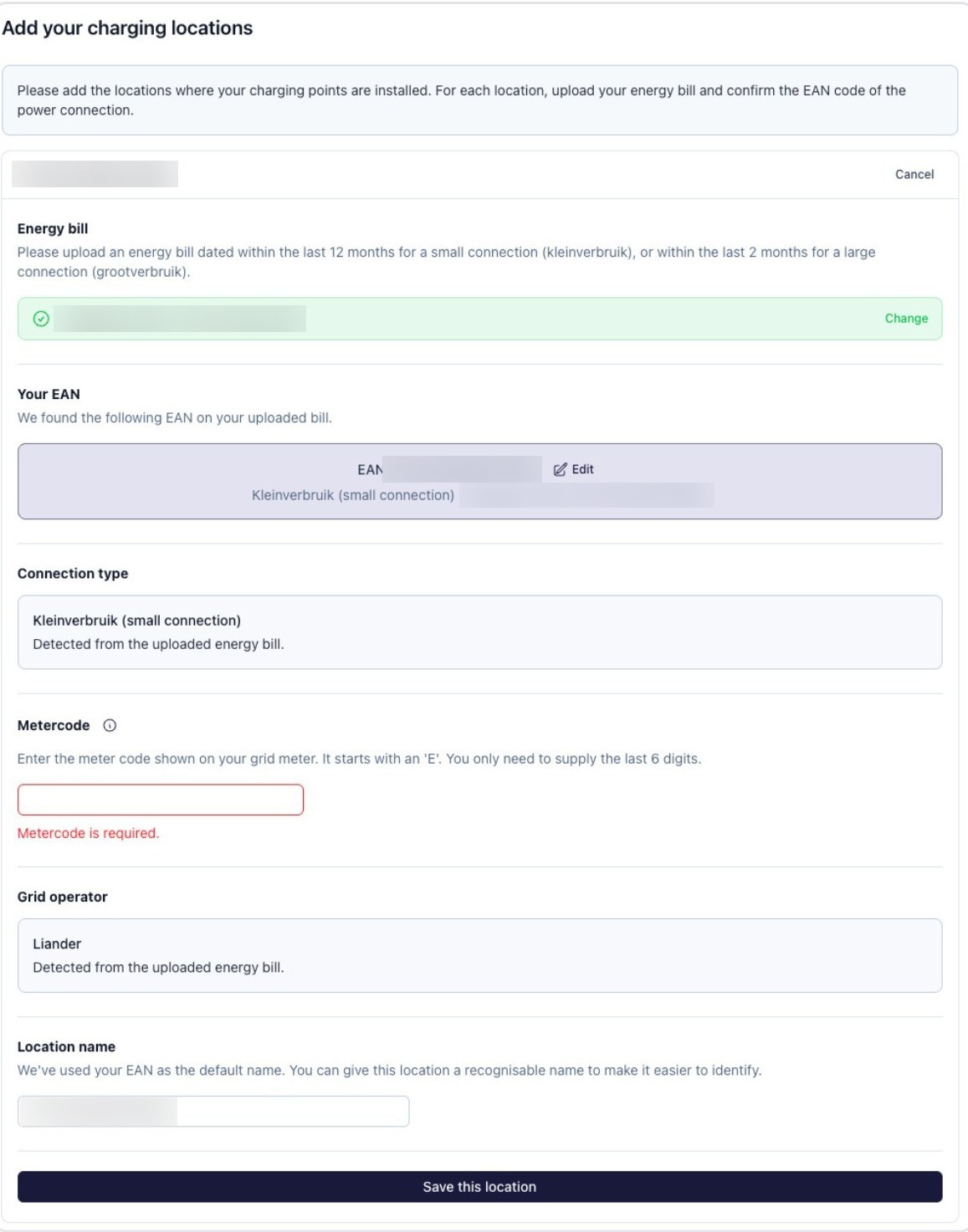
You upload your energy bill. We read the details of your connection from it, so you do not have to type them in. Then you check them and fill in your meter code. Action needed: yes, upload the bill and check what we read.
- Click the upload box and choose your energy bill. A PDF of max. 10 MB from your current energy supplier, no older than 12 months. Most homes have a small connection (kleinverbruik); for a large connection (grootverbruik) the bill may not be older than 2 months.
- Wait a few seconds. We read your EAN code, the connection type, your address and your grid operator from the bill. A new screen opens.
- Check your EAN code. Is it wrong? Click Edit. An EAN code has 18 digits and usually starts with 871. A 13-digit code on your bill is not the right one.
- Check the connection type and the grid operator.
- Fill in the last 6 digits of your meter code. The full meter code starts with an E. This field is required.
- Optional: change the location name, for example to "Home".
- Click Save this location.
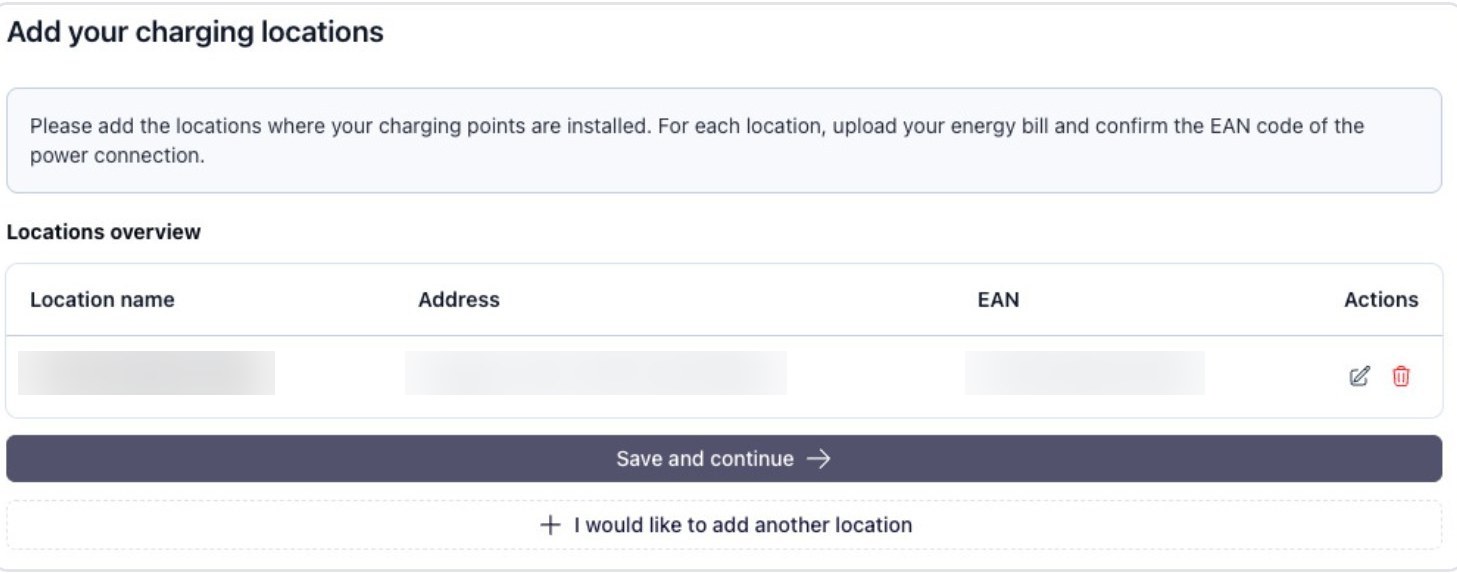
- In the list, check the name, address and EAN code of each location. The pencil edits a location, the bin deletes it.
- Do you have a second charging location? Click I would like to add another location and do the same, with its own energy bill. You cannot add the same EAN code twice.
- Click Save and continue. Back in your overview, steps 1 and 2 are done and step 3 is open.
What must be on the bill?. Your name, your address and your EAN code. If the EAN code is missing, the bill is rejected.
The bill is in my partner’s or housemate’s name.
My bill was rejected.
Do I need a green energy contract?
What is an EAN code?
Where do I find my meter code?
Do charging sessions from before I signed up count?
Step 3
Verify your identity
Because you sign the agreement online, we need to be sure it is really you. Our partner Stripe runs this check. It takes about 2 minutes. Your photos and your ID are stored at Stripe, not at Voltico; Voltico uses the outcome. Action needed: yes, you take two photos, which is easiest with your phone.
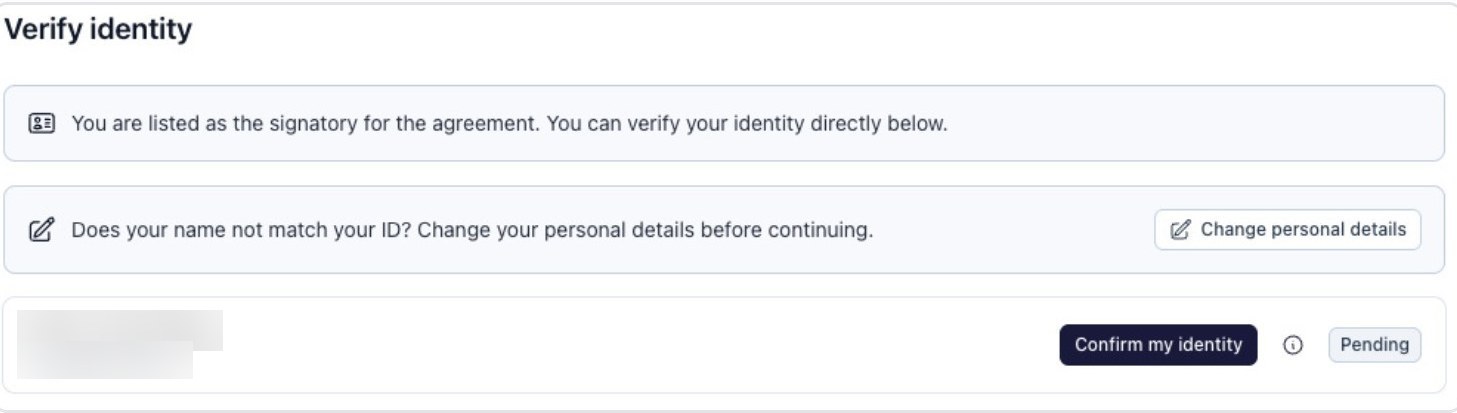
- Check your name. If it is not exactly as on your ID, click Change personal details and correct it first.
- Click Confirm my identity.
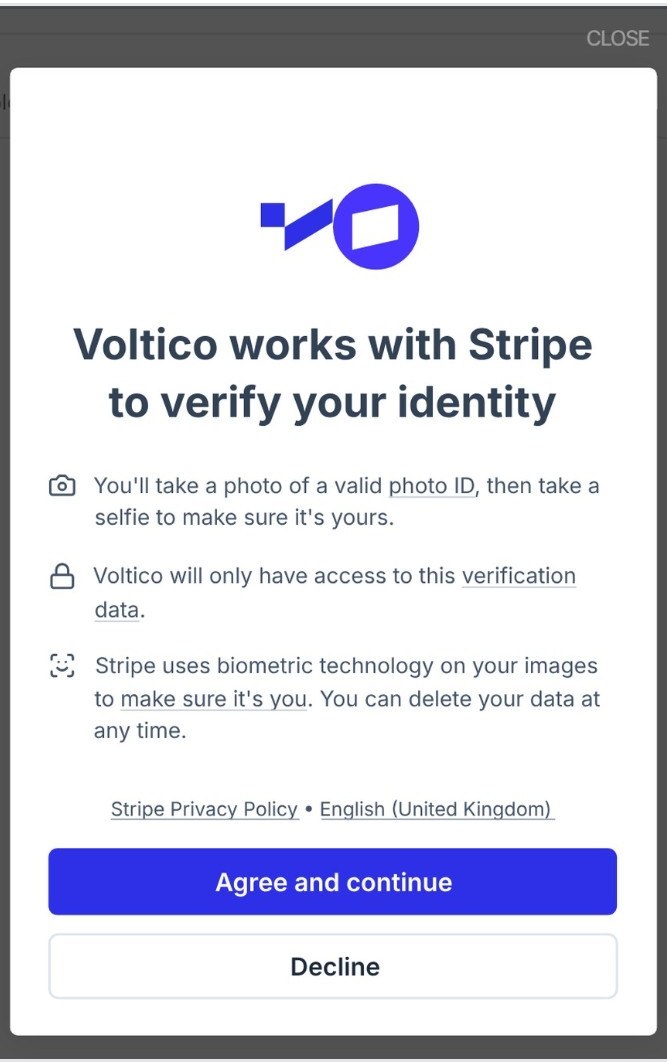
- Stripe opens. Read the explanation and click Agree and continue.
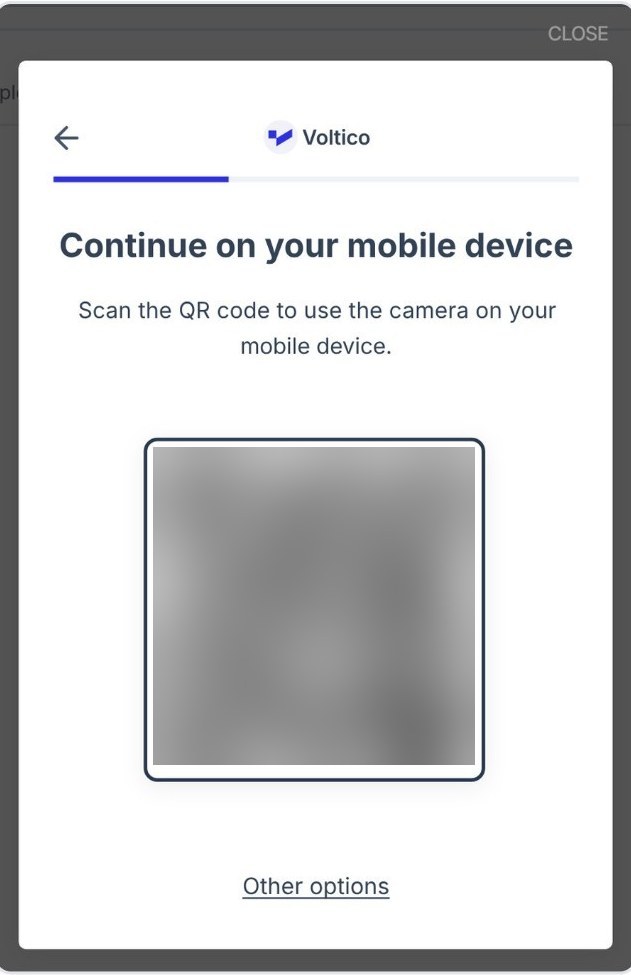
- A QR code appears on the screen. Open the camera on your phone and scan the QR code. Prefer the webcam on your computer? Click Other options.
- Follow the instructions on your phone: take a photo of your passport, ID card or driving licence.
- Take a selfie.
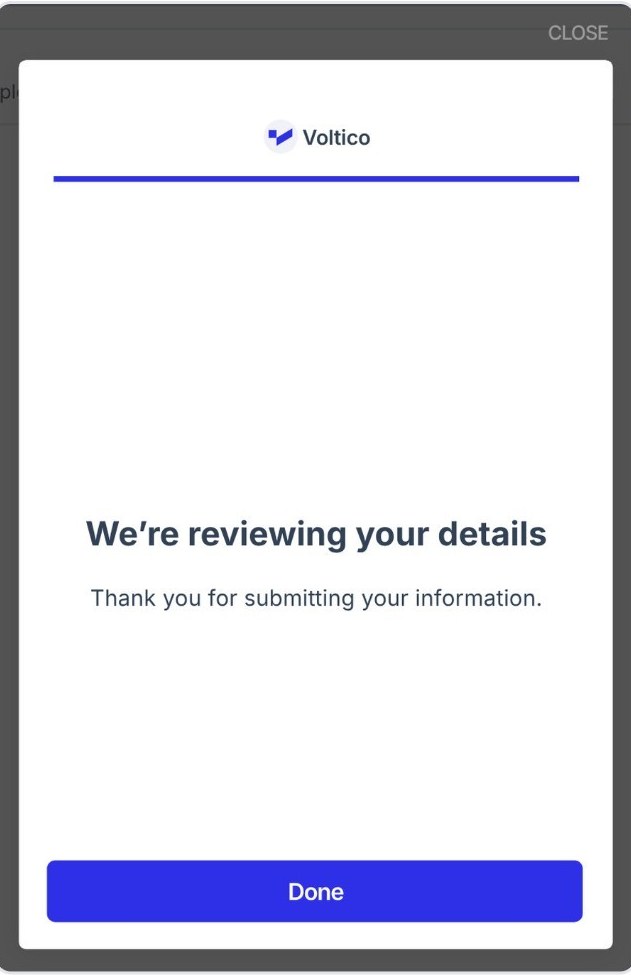
- Go back to your computer and click Done.
For good photos. Make sure the light is good. Put your ID on a dark, flat surface with all four corners in view. Take off your glasses and cap for the selfie.
Why a passport, ID card or driving licence?
The check is in a different language from the rest.
The check failed. What now?
Step 4
Sign the agreement
With the authorisation agreement you let Voltico register your charging sessions, sell the emission reduction units (ERE) they produce, and pay out your share. Note: after you sign, you can no longer change the details from steps 1 to 3 yourself. So check them once more in your overview first. Action needed: yes, read and sign.
- Read the document.
- Click Download agreement and Download terms and conditions and save both files.
- Click Sign now and follow the instructions on the screen.
- Signing does not work? An ad blocker can block the signing tool. Turn it off, or allow docuseal.eu, and try again.
What it costs. No subscription, connection fee or start-up costs. Voltico keeps 20% of the actual revenue as a service fee; you receive 80%. If no ERE can be generated, you pay nothing. Summary; if there is a difference, the authorisation agreement and the general terms and conditions for consumers apply.
How long does the agreement run, and can I cancel?
Step 5
Connect your charging sessions
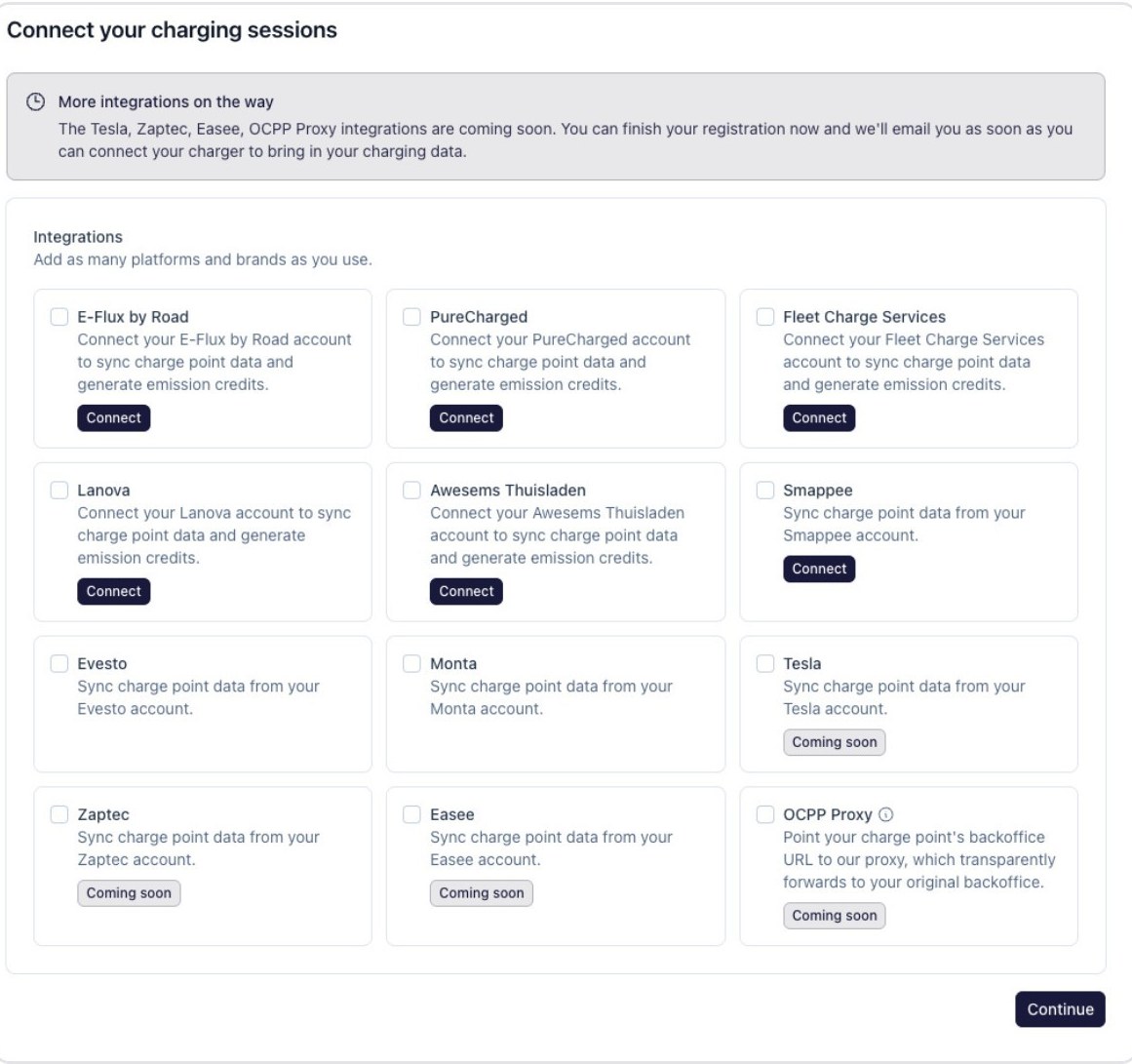
We register your charging sessions with the Dutch Emission Authority (NEa), so we need to be able to read them. You arrange that by connecting the app or platform of your charger. Action needed: yes, log in to your charging platform.
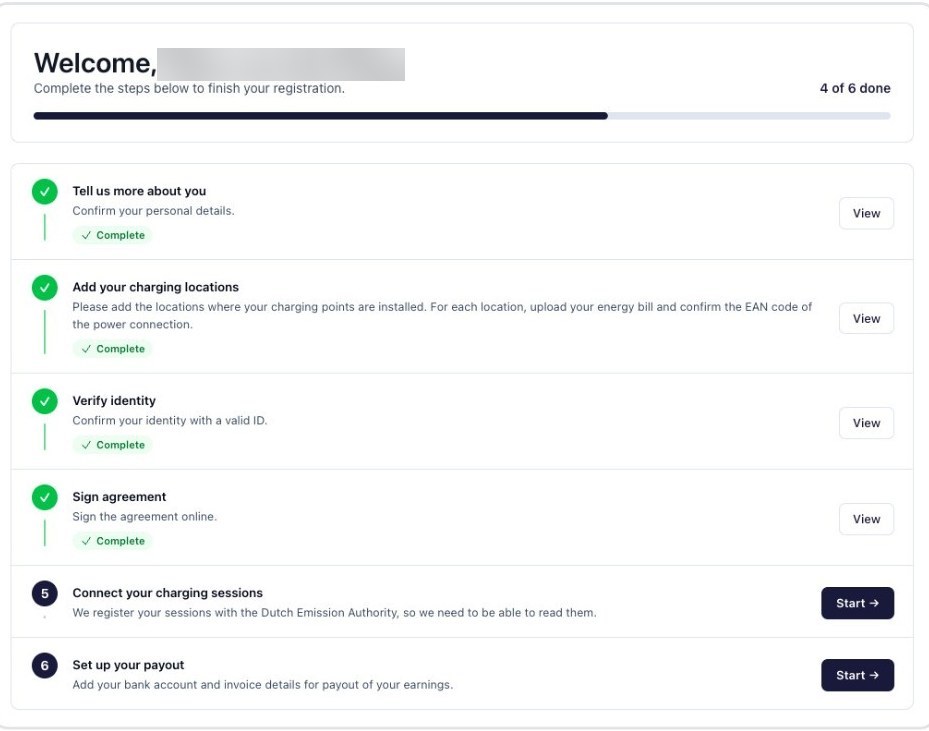
- In your overview, click Start next to Connect your charging sessions. After signing, steps 5 and 6 are both open.
- Find the platform or brand of your charger in the list.
- Click Connect and log in with your account for that platform.
- Do you use more than one platform? Connect them all.
- Click Continue.
Does it say "Coming soon"?. Finish your sign-up anyway. We will email you as soon as you can connect your charger.
What data do you read?
My charger is not on the list.
Step 6
Set up your payout
The last step. Here you tell us which account we pay your earnings into. Action needed: yes, fill in your IBAN and answer the VAT question. Note: the last click sends your sign-up.
- Fill in your IBAN. The account holder name is already filled in for you.
- Answer the question Are you exempt from VAT? Most private individuals choose Yes. Your own VAT situation remains your own responsibility.
- Check your IBAN one more time.
- Click Complete onboarding.
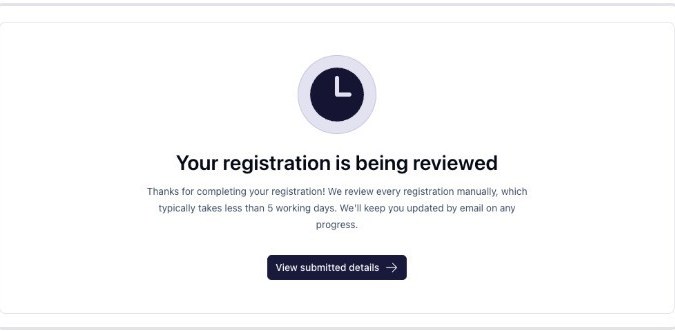
Before you click. As soon as you click Complete onboarding, your sign-up goes to our team for review. So check your IBAN first.
My IBAN is not accepted.
Am I exempt from VAT?
After you sign up
Within 5 working days
We review your sign-up and email you the result. If something is not right, we tell you what, so we can fix it together.
From then on
Your charging sessions come in automatically. You do not need to do anything.
After the sale
We sell your ERE and transfer your 80% share to your account.
Stuck? Quick fixes
My energy bill is rejected
I cannot upload my bill
My bill is split over two files
I cannot find my meter code
My name does not match my ID
The identity check fails
Signing does not work
My charger says "Coming soon"
My IBAN is not accepted
I made a mistake in an earlier step
I cannot find my login email
Still stuck? Use the message window in your onboarding, or email support@voltico.nl with the email address you signed up with.
Frequently asked questions
About you
I lease my car. Can I still take part?
Can I change my email address here?
Charging locations
The bill is in my partner’s or housemate’s name.
My bill was rejected.
Do I need a green energy contract?
What is an EAN code?
Where do I find my meter code?
Do charging sessions from before I signed up count?
Identity
Why a passport, ID card or driving licence?
The check is in a different language from the rest.
The check failed. What now?
Agreement
How long does the agreement run, and can I cancel?
Charging sessions
What data do you read?
My charger is not on the list.
Payout
My IBAN is not accepted.
Am I exempt from VAT?
After you sign up
When exactly do I get paid?
How do I contact you?
Next
Signing up as an organisation
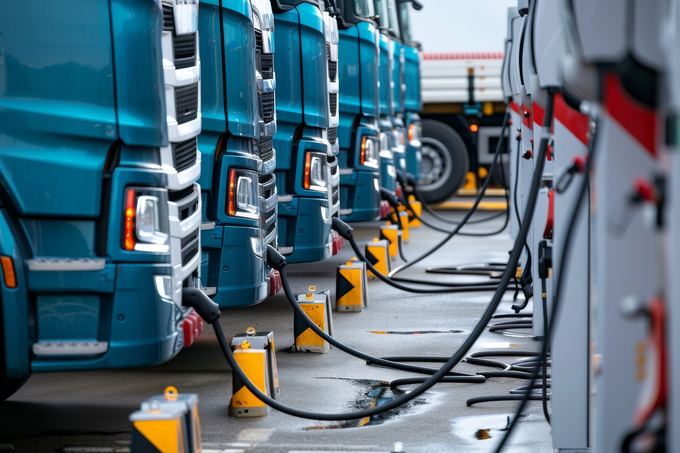
In the name of a company, sole proprietorship or association. Eight steps: who does what, who signs.
View the plan
Voltico opens ERE market to consumers | Earn with your home charger
Earn money with your EV and home charger through EREs. Voltico automates the entire process, compliant, with no setup costs. Roughly €91–€478 per year gross at the current market price.
Read article
Is my charger MID-certified? How to check
Since 2026 the NEa requires the MID meter to sit inside your charger. Look up your model and see whether your charger is MID-certified.
Read article